GaggiMate profiles & your coffee brew log
Better brews, from profile to cup.
Browse profiles, analyze files and explore the example without logging in.
MyBrewFolio brings GaggiMate profiles, fast brew notes and espresso analysis together. Complete notes in a few clicks, organize beans and grinders, and keep the grind settings that worked with each coffee and profile.
Sync several GaggiMate machines or log manual brews from any espresso machine, pour-over or other brewer. From your first recipe to detailed phase statistics, keep your results together and share an interactive brew with a link.
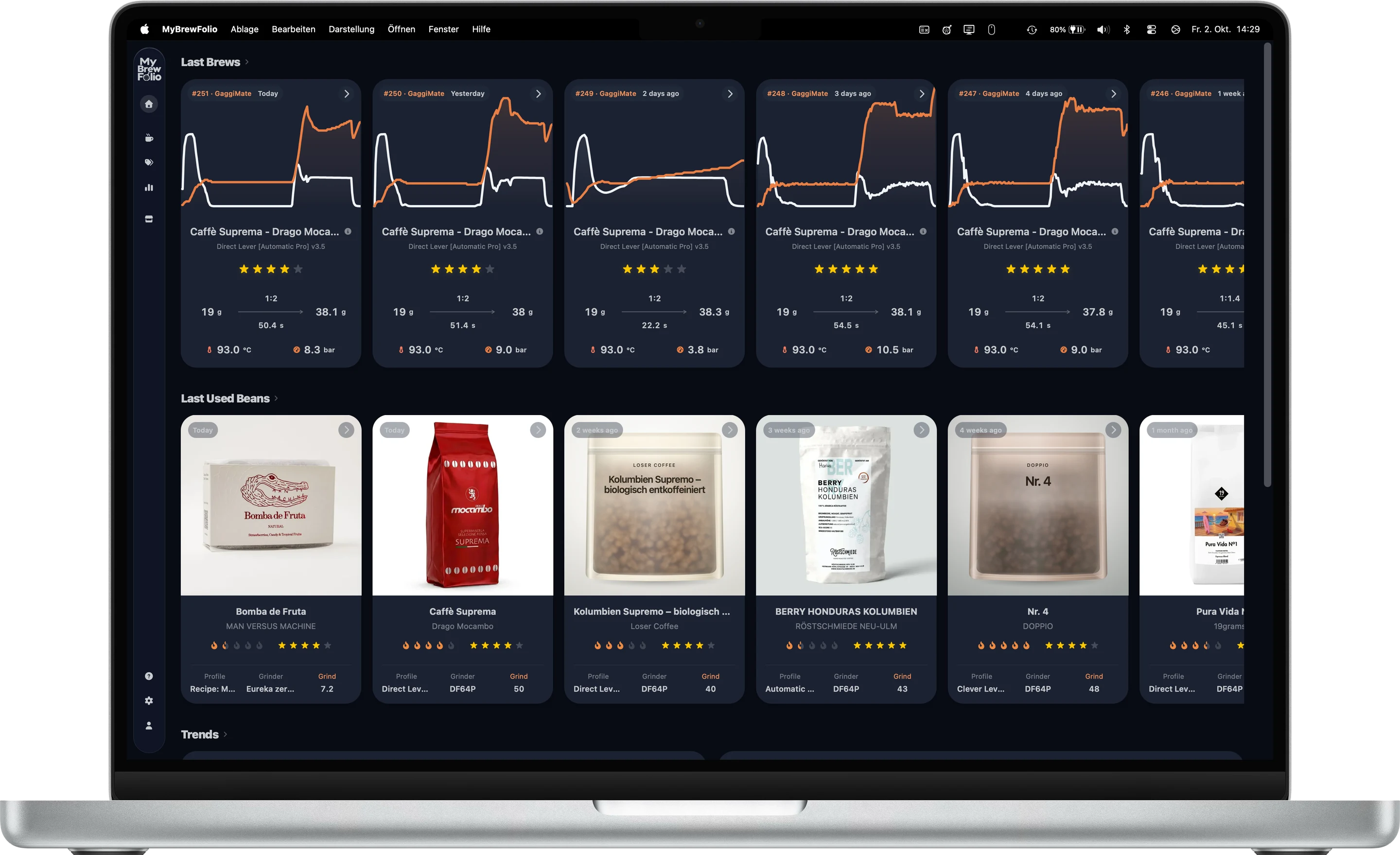
Profile Store
- Search community profiles by roast, style and compatibility; inspect variants and download files.
- Read dial-in guides, publish your own profiles and share remixes.
- Like, comment and discuss results with shared brews on each profile page.
Browse and download without an account. Publishing, social features and Sync require one.
Browse profiles →Multi-Sync
- Connect multiple GaggiMate machines and Sync installations to one account.
- Run the open-source companion on desktop or in Docker; sync automatically or on demand.
- Import shots and profiles, with optional automatic note edits back to GaggiMate.
An account and a locally connected Sync installation are required.
Explore GaggiMate Sync →Smart Quick Notes
- Complete shot notes in a few clicks without tedious typing.
- Personal bean and grind suggestions match your coffee and profile; libraries grow with your notes.
- Record dose, taste and other details with customizable Quick Notes and your own fields.
Try notes on an imported brew. Personal suggestions, libraries and custom fields require an account.
See Quick Notes →Beans & Grinders
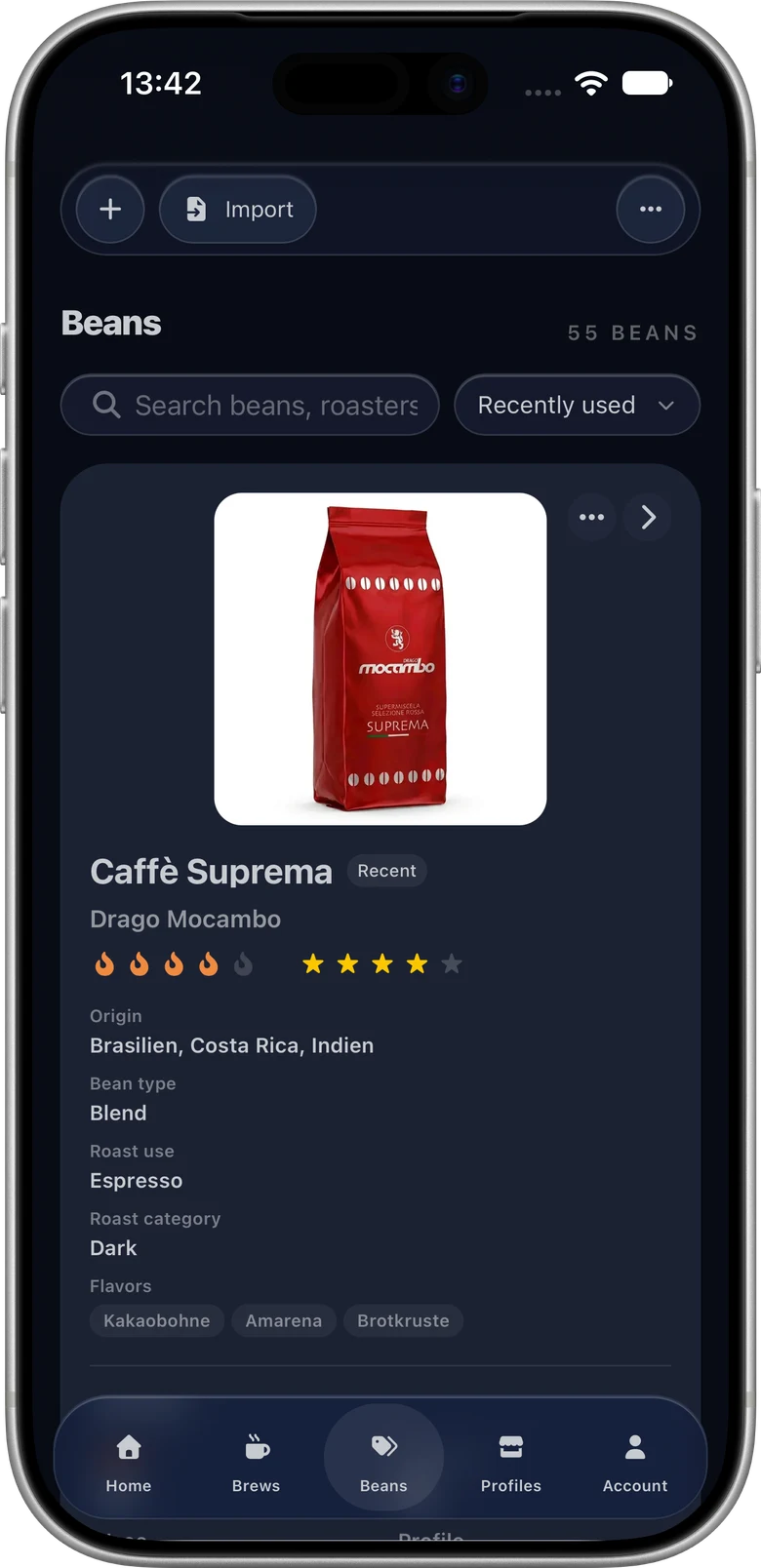
- Keep simple bean names or full origin details, photos, package designs, ratings and roast levels.
- Track grind settings by bean and profile; merge duplicate beans and grinders while preserving history.
- Import and export files, including Beanconqueror; use an external AI chat to help complete bean details.
An account is required for your bean and grinder library.
Explore your coffee library →Manual Brews
- Log espresso, V60, pour-over and other coffee brews from any brewer.
- Keep brewers, recipes, dose, yield, ratio, duration, temperature and tasting notes together.
- Compare recorded results and share a brew, alongside your synced GaggiMate shots.
An account is required to save manual brews, brewers and recipes.
Explore manual brew logging →Analyzer & Statistics
- Inspect pressure, flow, weight and temperature curves, phase targets and available stop reasons.
- Compare two or several shots; customize detail tables and inspect recorded machine errors.
- Filter your history and statistics, track coffee and water used, and share interactive results.
Analyze files and open shared brews without an account. Personal statistics require one.
Explore brew analysis →
GaggiMate Profile Store
Find a profile, choose a variant, start brewing.
Browse community espresso profiles without logging in. Search by roast level, profile style or compatible machine, then open a profile to read its description, dial-in guide and available variants.
Download a compatible JSON file and import it in the GaggiMate web interface. Where local access is supported and configured, use the explicit installation action to send a profile to your machine. Automatic Sync imports machine shots and profiles into your library; profile installation is a separate action.
Sign in to publish your own profiles and remixes, like favorites, and attach shared brews to discussions so others can inspect your results.
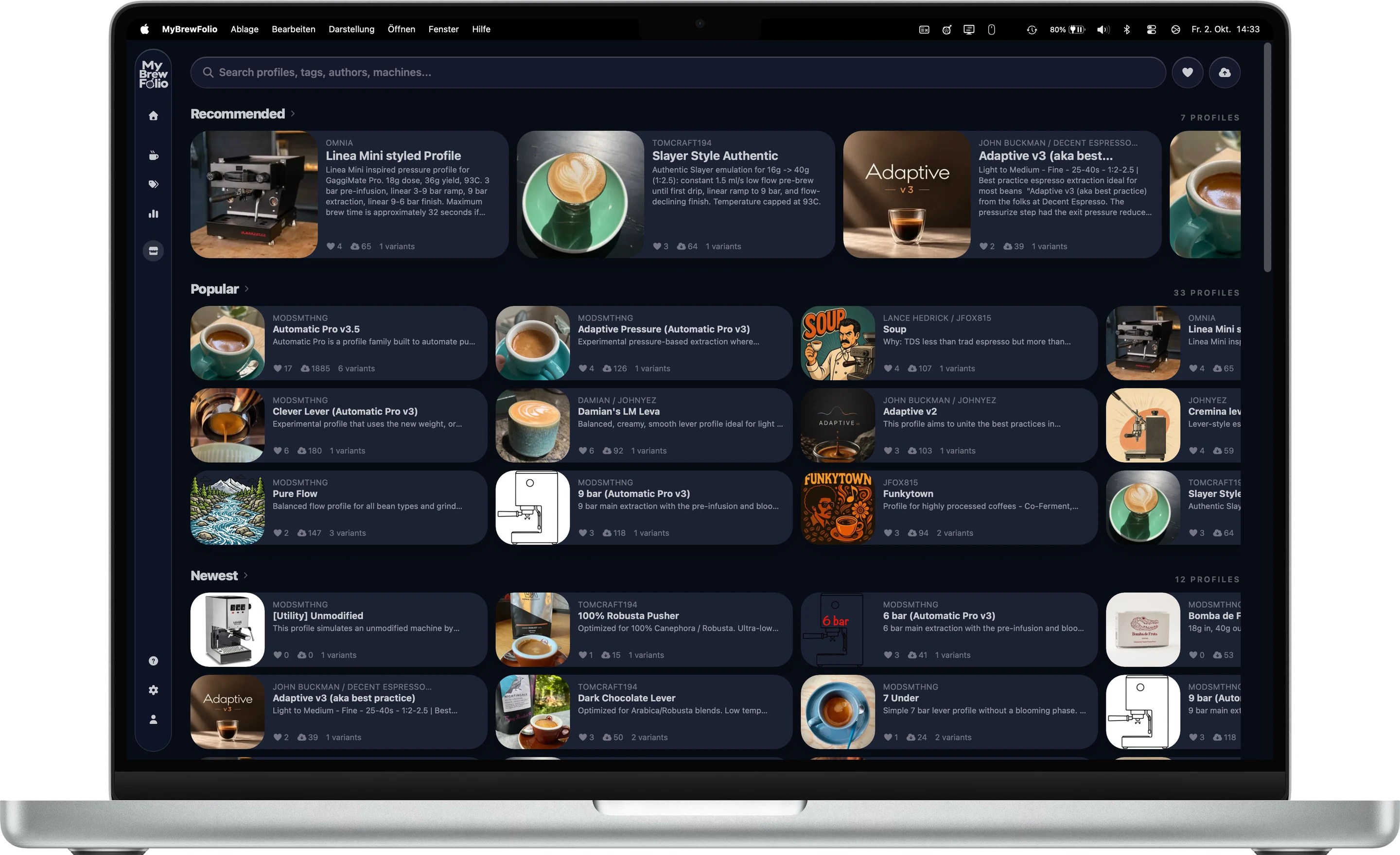
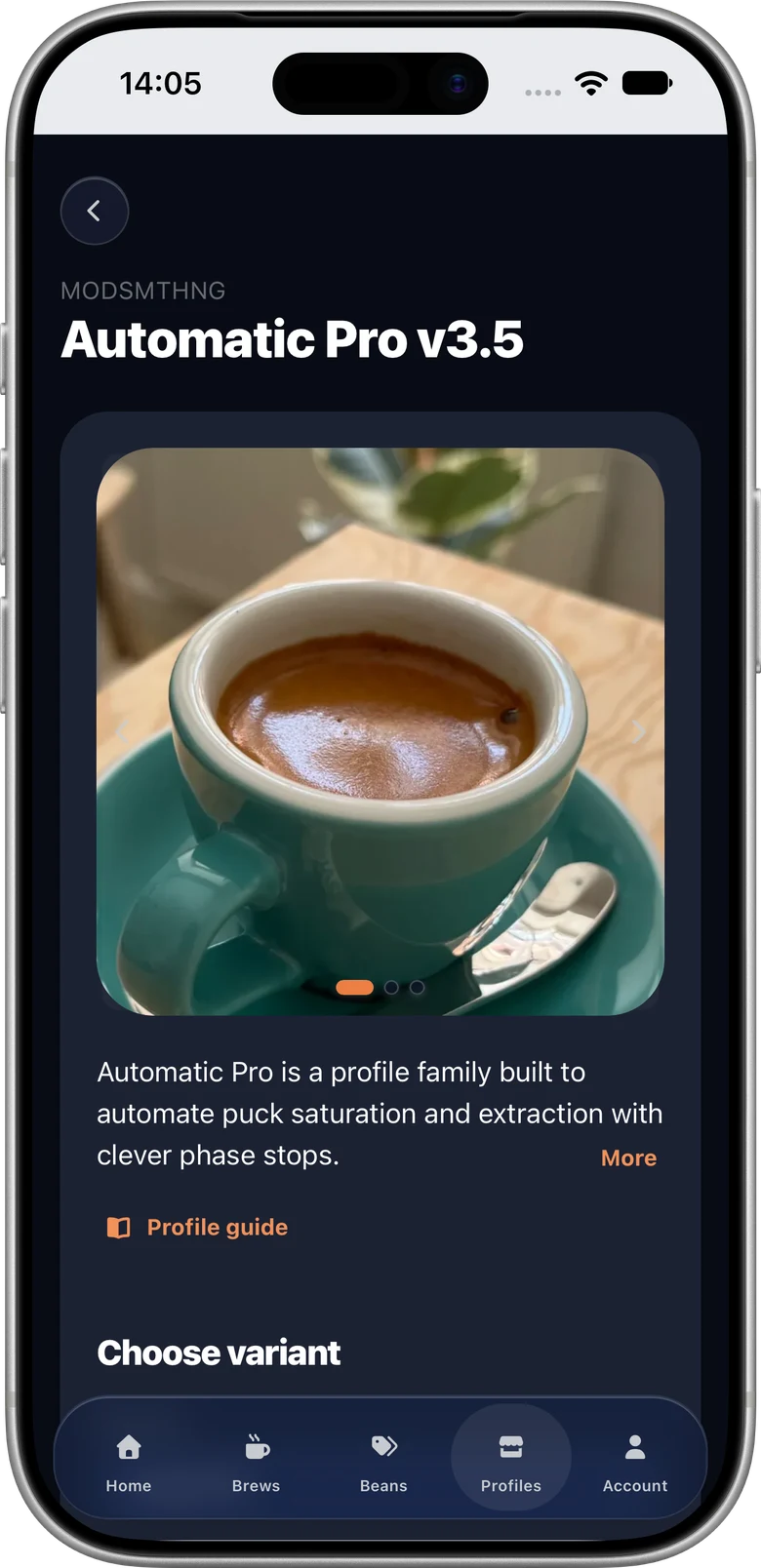
Review a profile and its variants on mobile.
Multi-Sync
Several machines. One brew history.
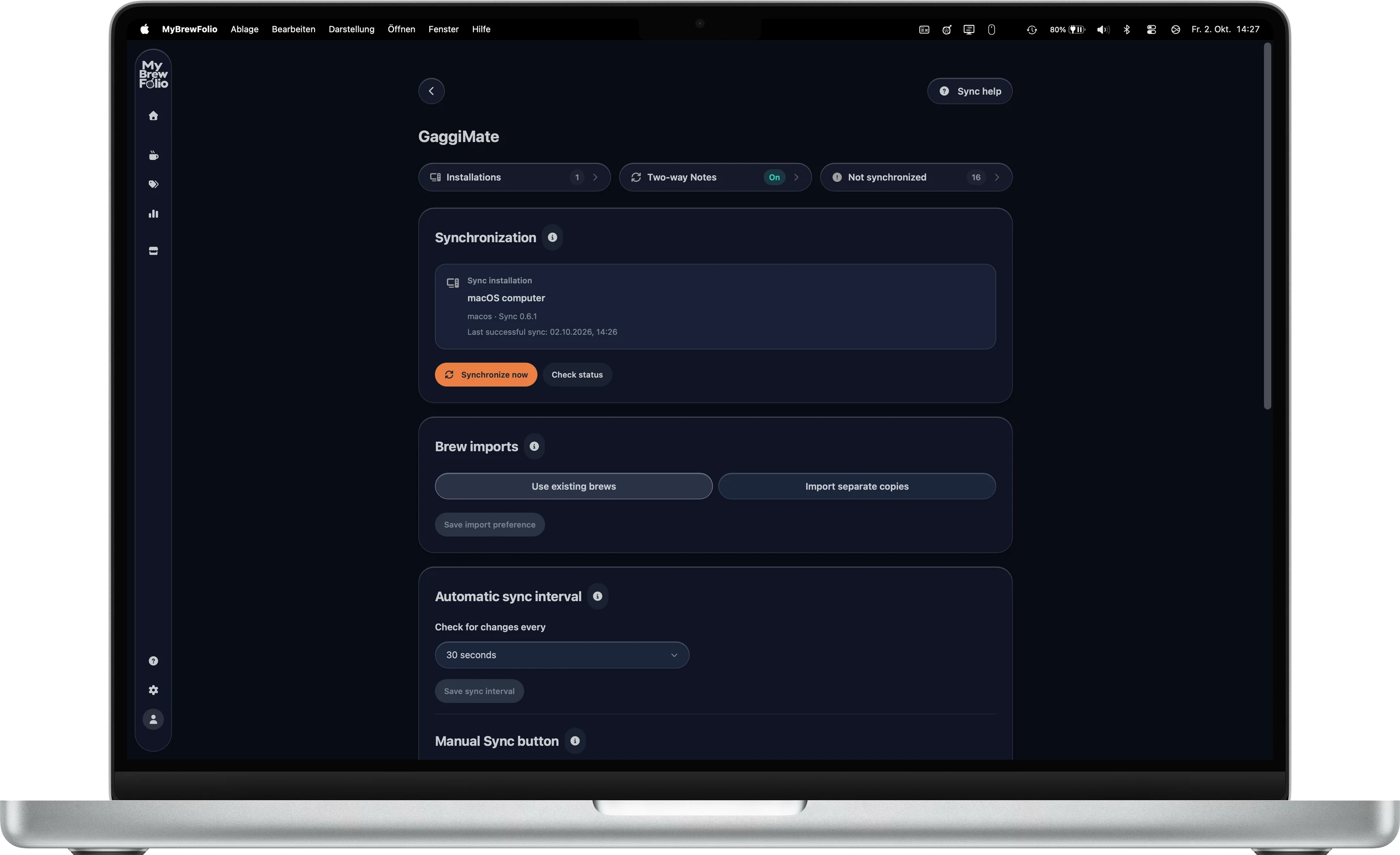
Connect the open-source MyBrewFolio Sync companion to your account and the GaggiMate machines on your local network. Run it on your desktop or in Docker, use more than one installation, and manage your machines and connected installations from your account.
Sync new shots and profiles automatically while the companion is running, or start a manual sync. It catches up with available machine records after an interruption. Each machine keeps its own source and sync settings.
Notes can also sync back to GaggiMate when you explicitly enable note synchronization. Review the setup and backup guidance before enabling this option. Machine addresses stay local to the companion.
Smart Quick Notes
Keep the settings that worked with the brew.
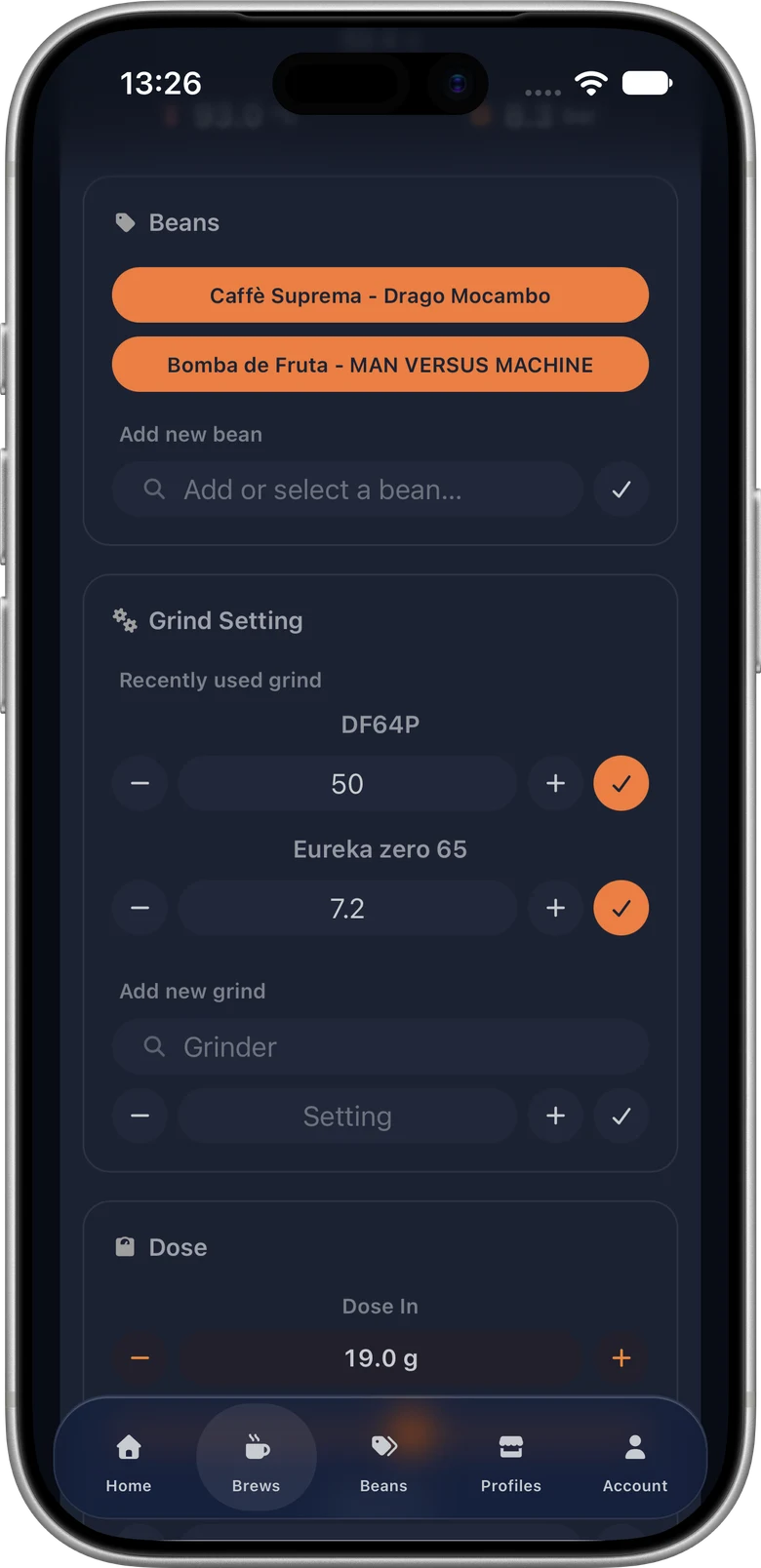
Select the bean, grinder and grind setting, record dose and yield, then add your taste impression. Your previous brews provide personal suggestions based on the selected coffee and profile, so common entries take a few clicks.
Bean and grinder entries grow from your shot notes. Edit the library directly, look up earlier grind settings, and add custom Quick Note fields for the details you care about.
Try notes on an imported brew without logging in. Personal suggestions, the saved library and custom fields require an account.
Beans & Grinders
A coffee library as detailed as you need.
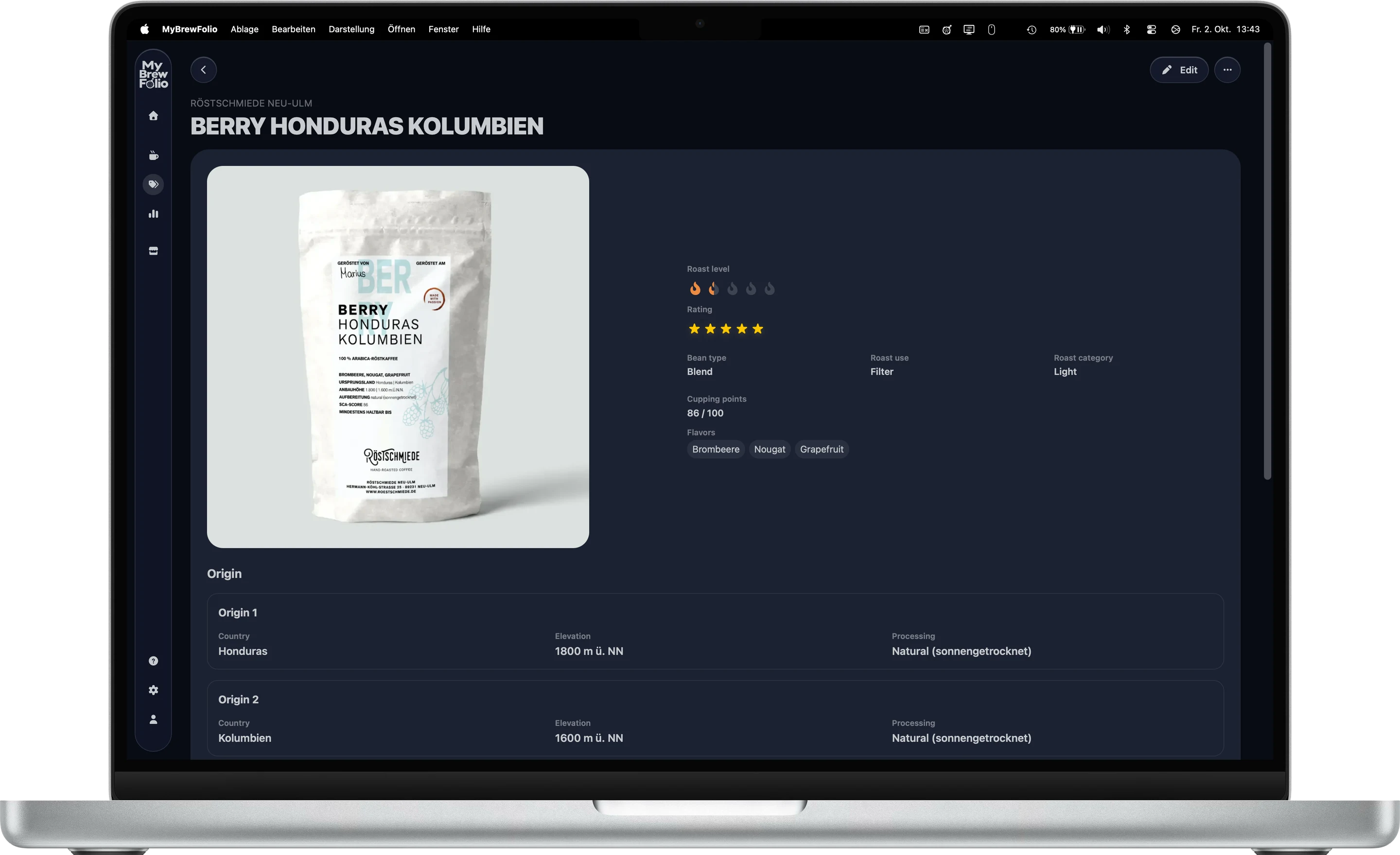
Start with a bean name and roaster, or add roast level, origin, altitude and other coffee details. Rate your beans, add a photo, or choose package colors and backgrounds. Previous grinder settings stay linked to your beans and profiles.
Merge duplicate beans and grinders while preserving brew history. Import or export your library and individual bean JSON files. For help reading a coffee package, copy the provided prompt into your preferred external AI chat and review its result before importing the bean details.
Beanconqueror uses a file transfer: import its regular ZIP or JSON export, preview the entries, then choose what to add. Export your MyBrewFolio beans as an Excel file for Beanconqueror’s roasted-bean import.
Manual coffee brew log
Keep espresso and pour-over recipes together.
Choose your brewer and optionally a saved recipe name, then record when you brewed. Log dose, beverage yield, ratio, duration, temperature and taste for an espresso machine, V60 or another coffee brewer.
Manual brews join your history, bean and grinder workflow, comparison and sharing tools. Their measurements come from the values you enter; recorded machine curves and phase stops remain available for imported or synced GaggiMate shots.
An account is required to save manual brews and maintain your brewers and recipes.
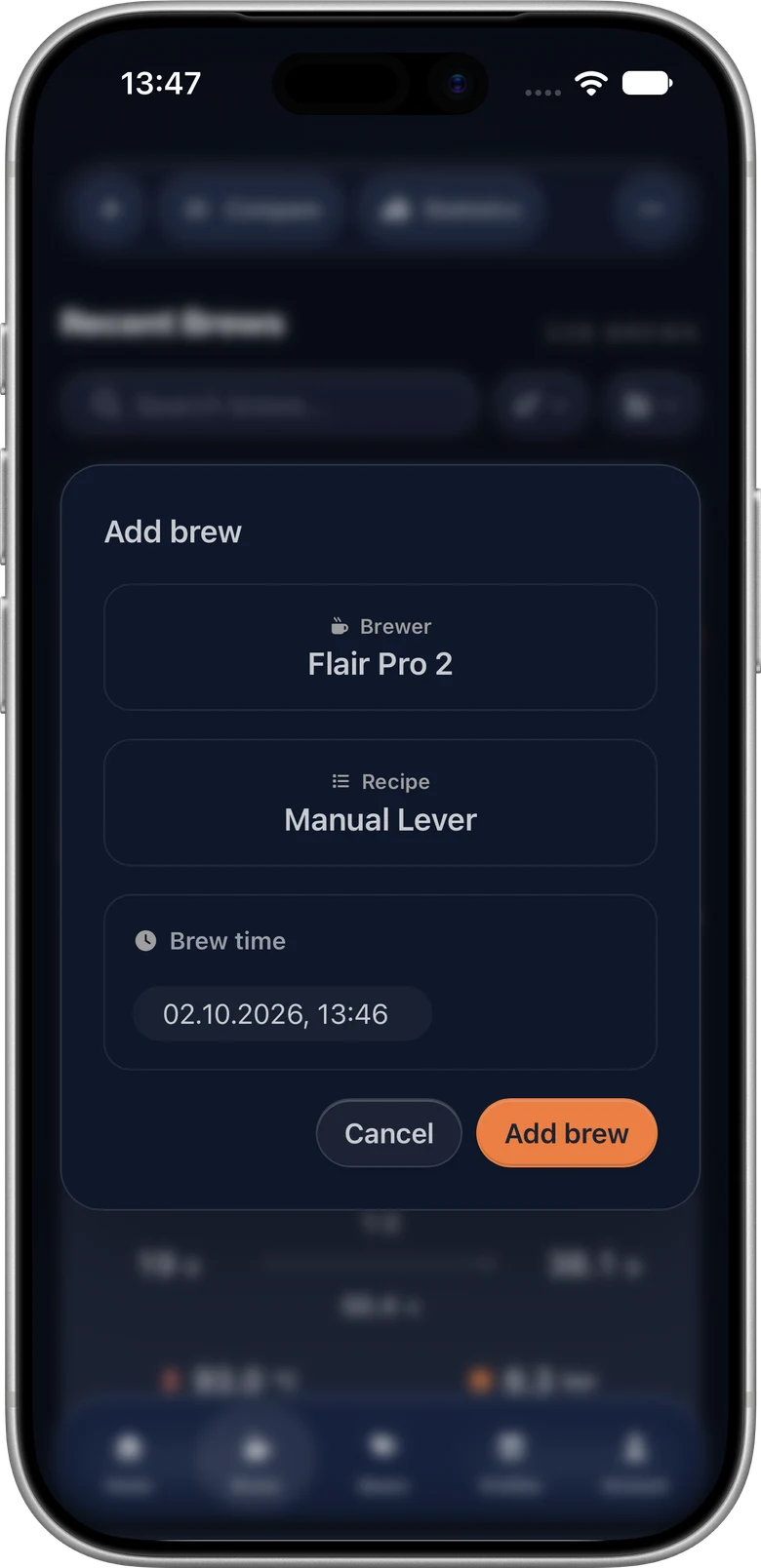
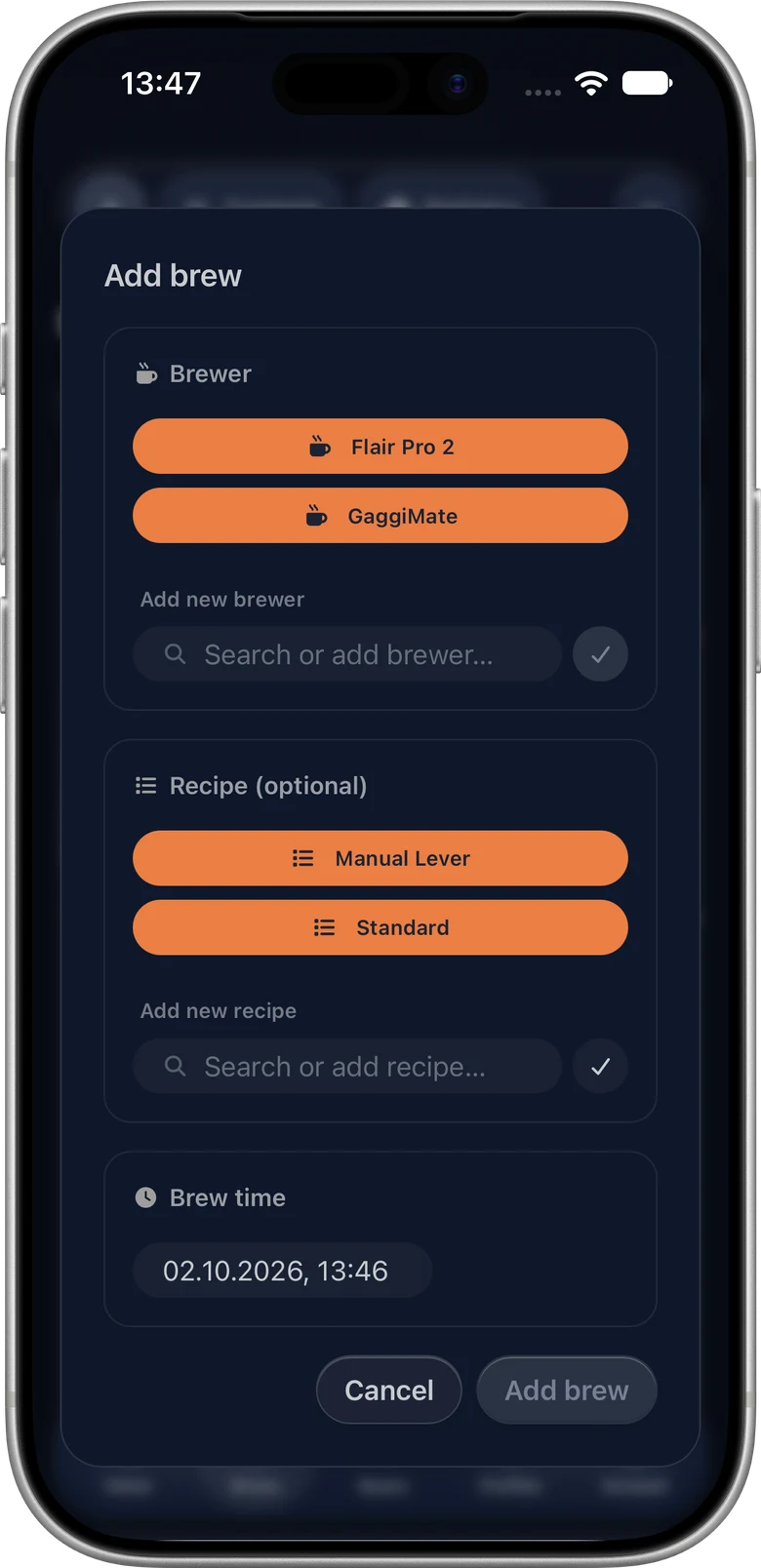
Start a manual entry by choosing the brewer and recipe.
Espresso shot analysis
Understand the curve and every phase behind it.
Open or import a recorded shot, review dose, yield and duration, then inspect pressure, pump flow, puck flow, weight and temperature. Profile targets and available stop reasons help explain how each phase ended.
Use the configurable detail table to inspect transition values and recorded machine errors. Overlay two shots in detail or use Multi-Compare for a larger group. Filter your history and statistics by profile, explore phase results, and track total coffee brewed and water used.
Share an interactive, read-only brew with a link. Anyone can inspect its curves and analysis without an account. Open the example to try this now.
File analysis and shared brews work without an account. Personal history and statistics require one.
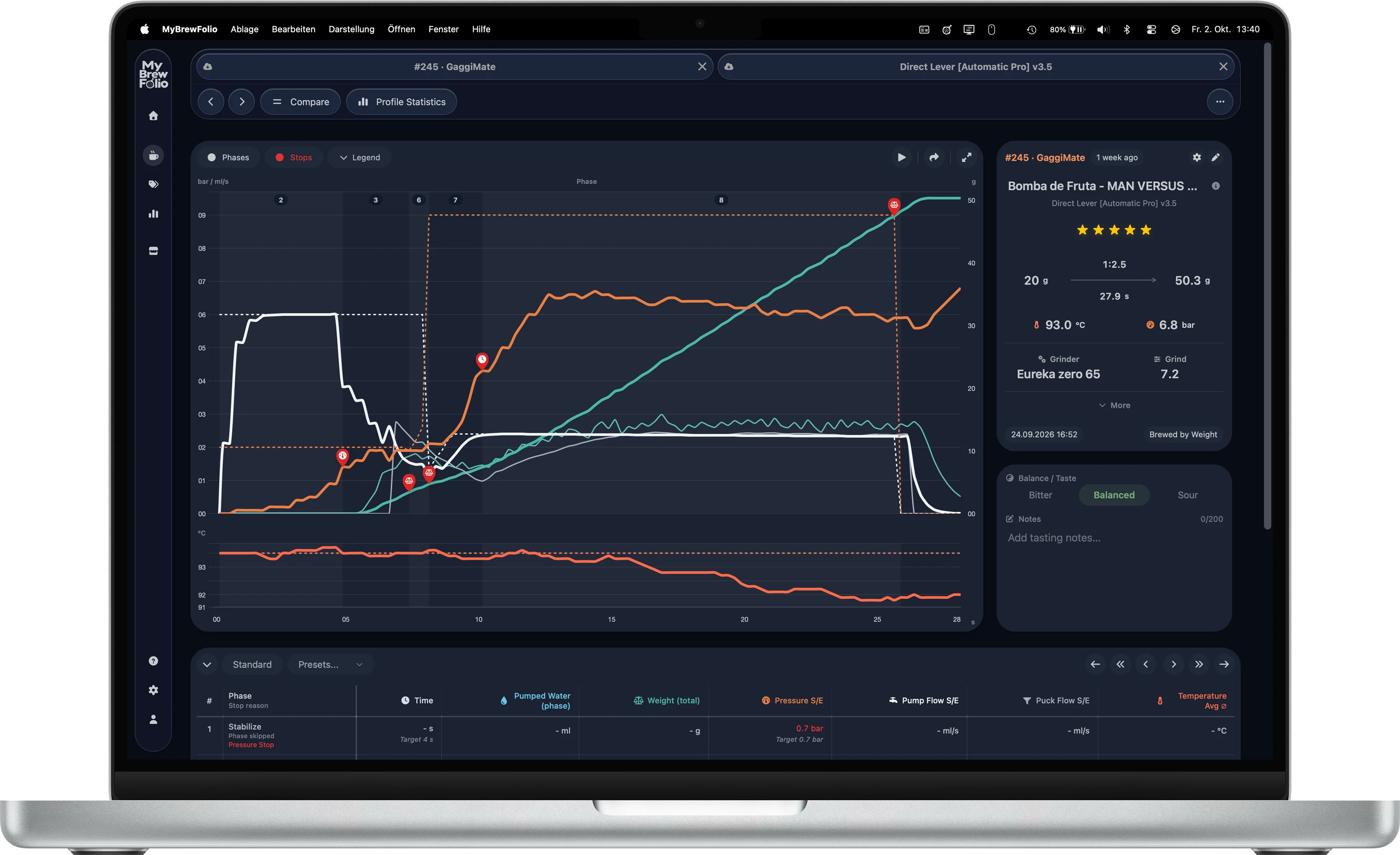
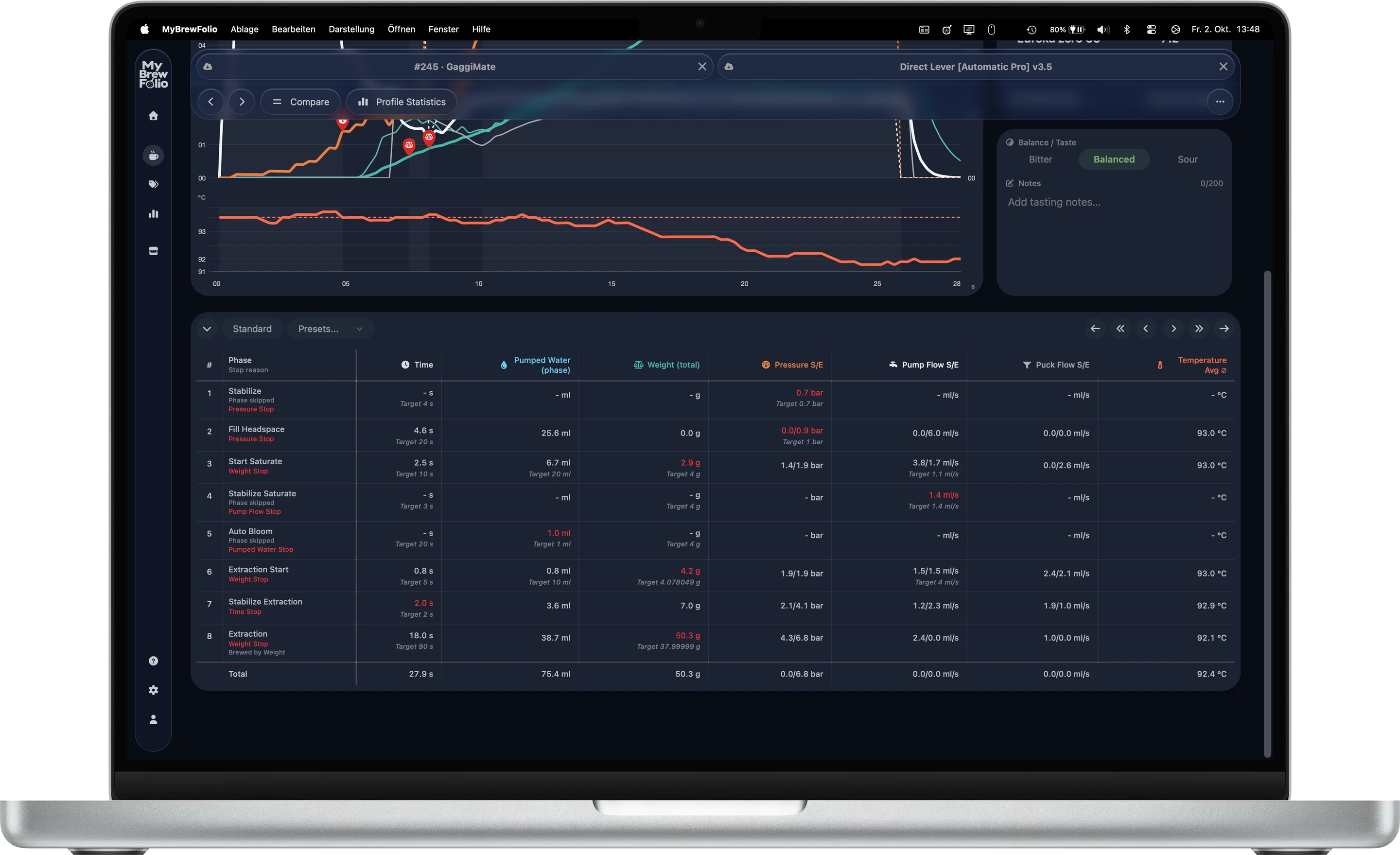
Inspect the measurements behind each phase.
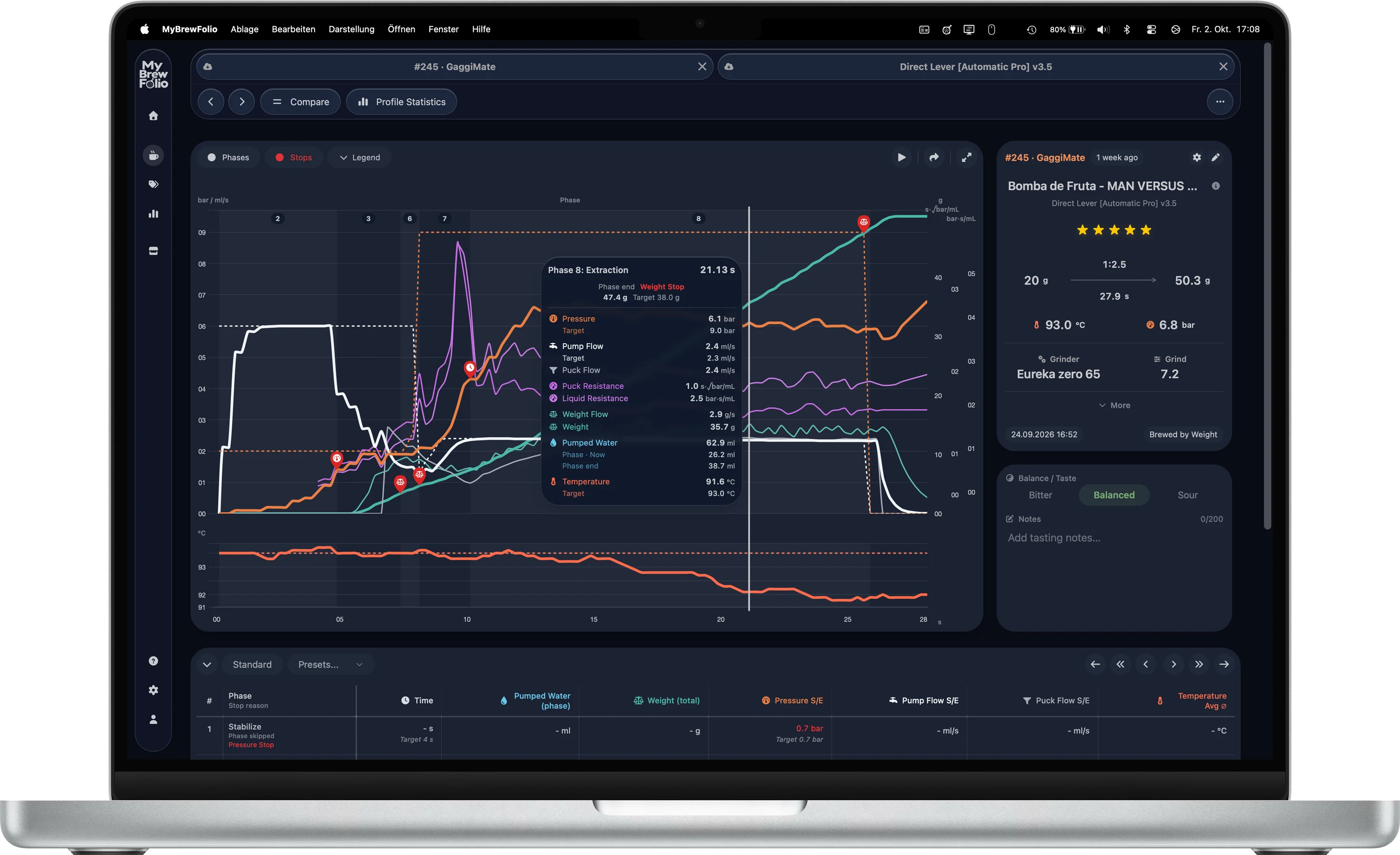
Inspect every available measurement and target in the selected phase’s hover card.
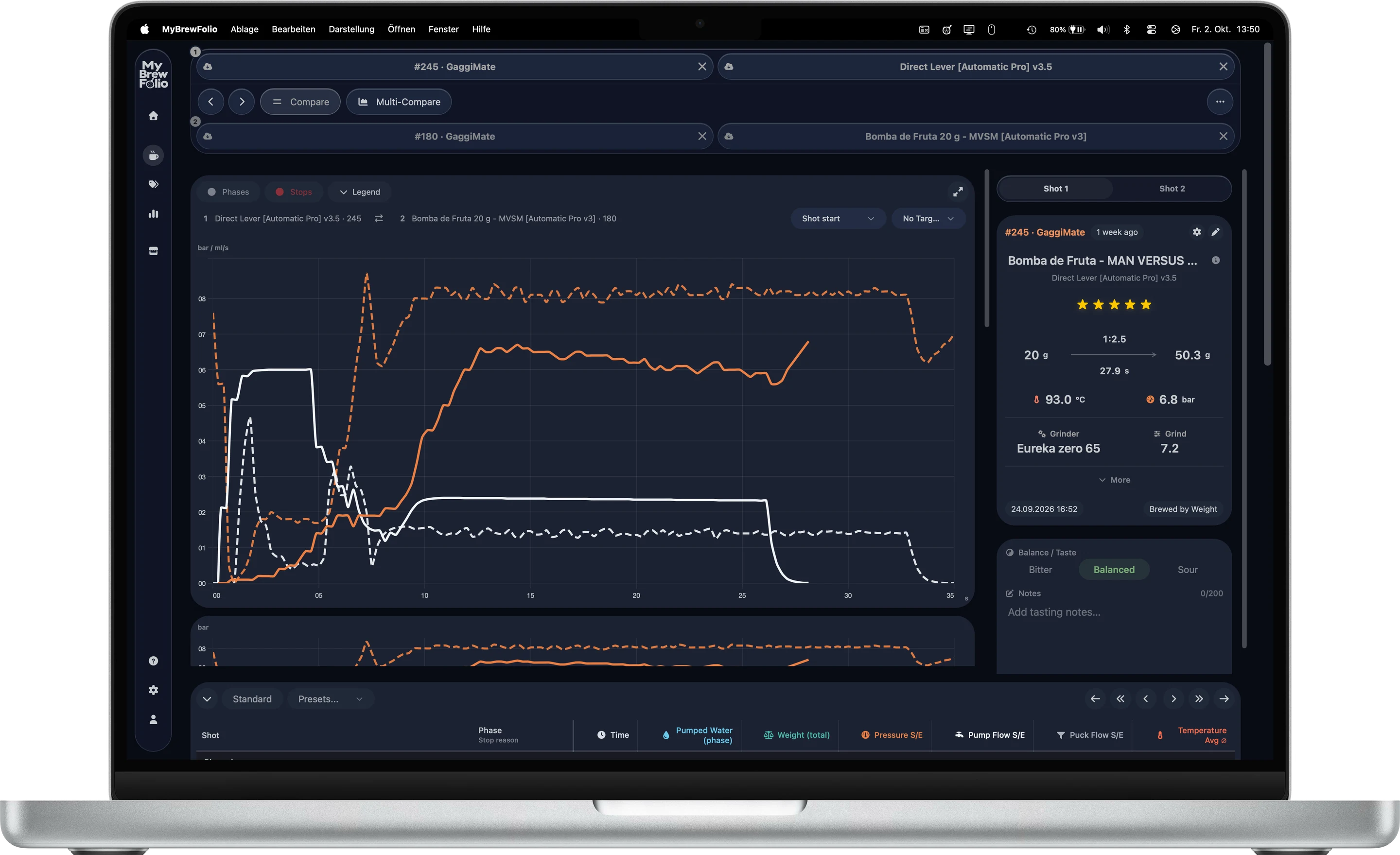
Compare curves and results across brews.
Brew statistics
Find patterns across your brewing.
Explore trends over time, global metric averages and shot curves side by side. Drill into per-profile or per-phase results to compare averages, ranges and target deltas.
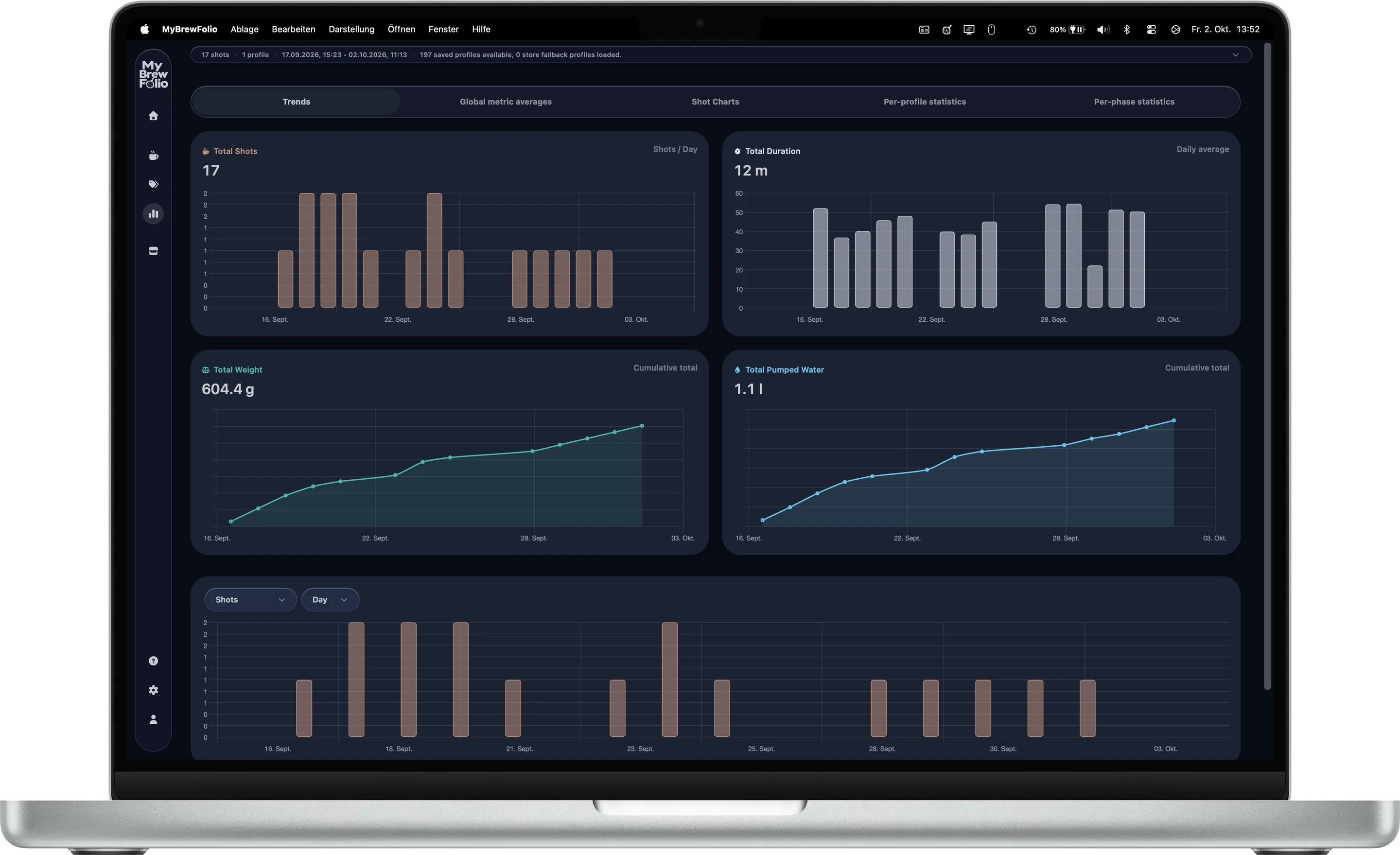
Follow brew activity and coffee use over time.
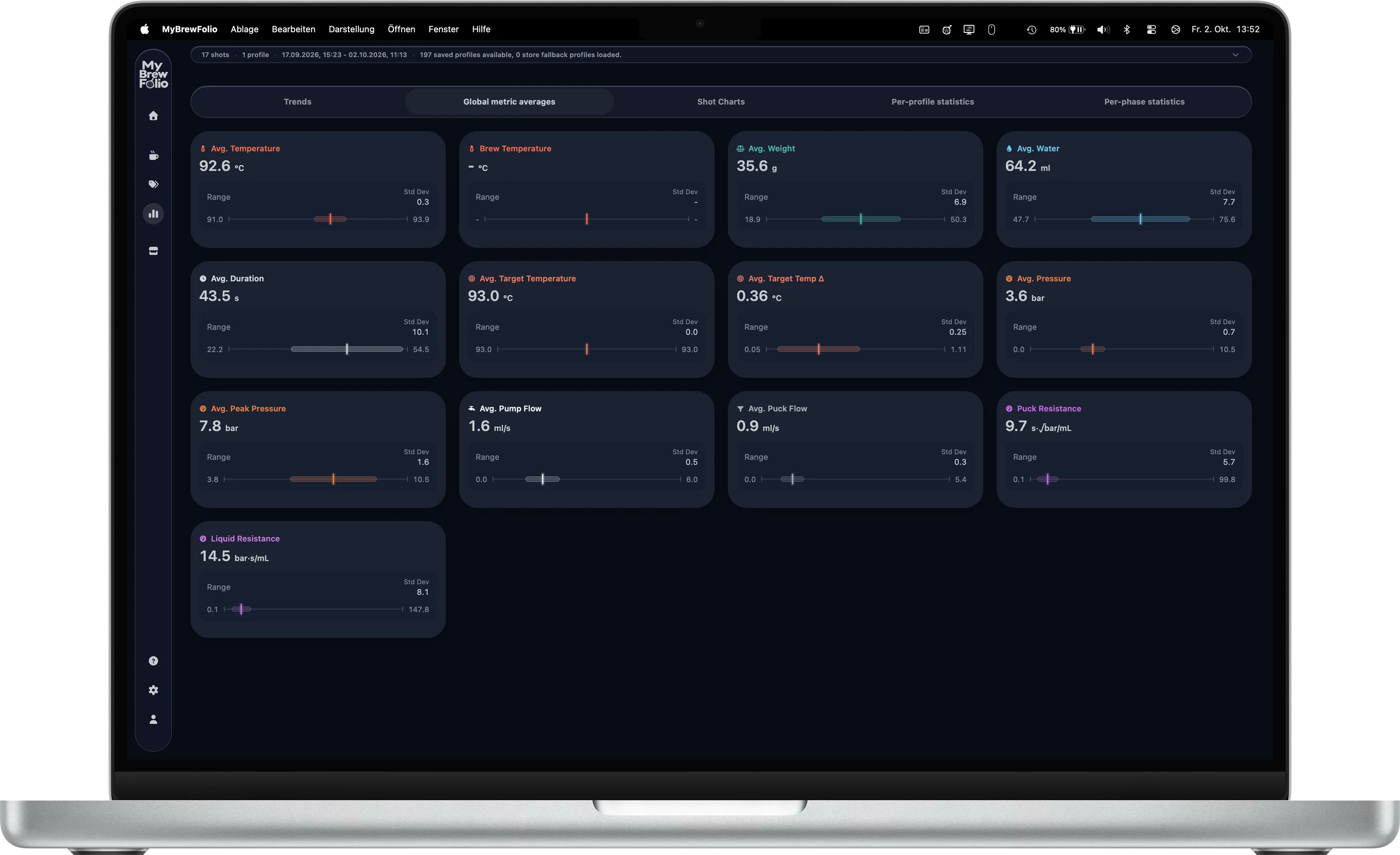
Review global metric averages and ranges.
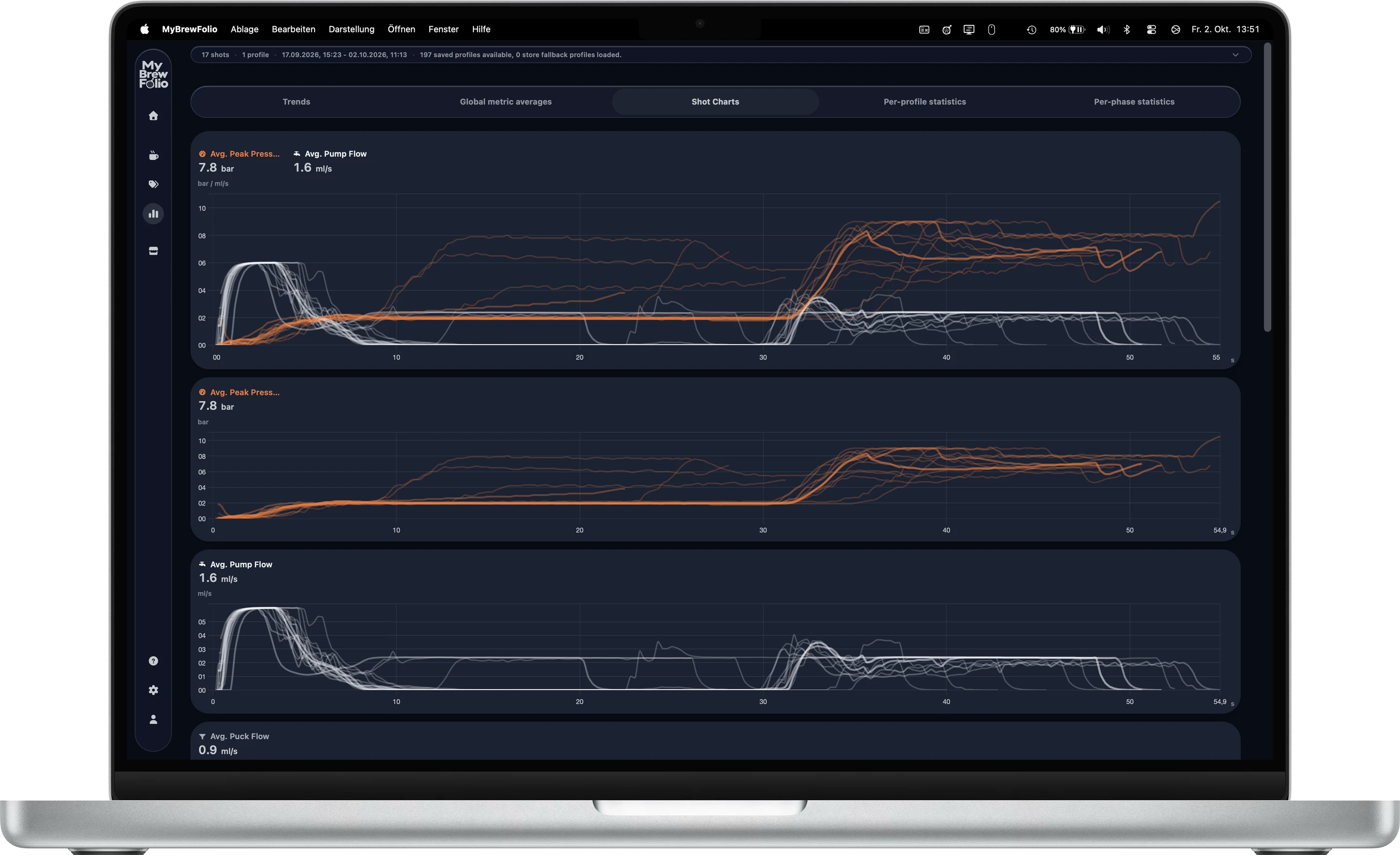
Compare shot curves across a group of brews.
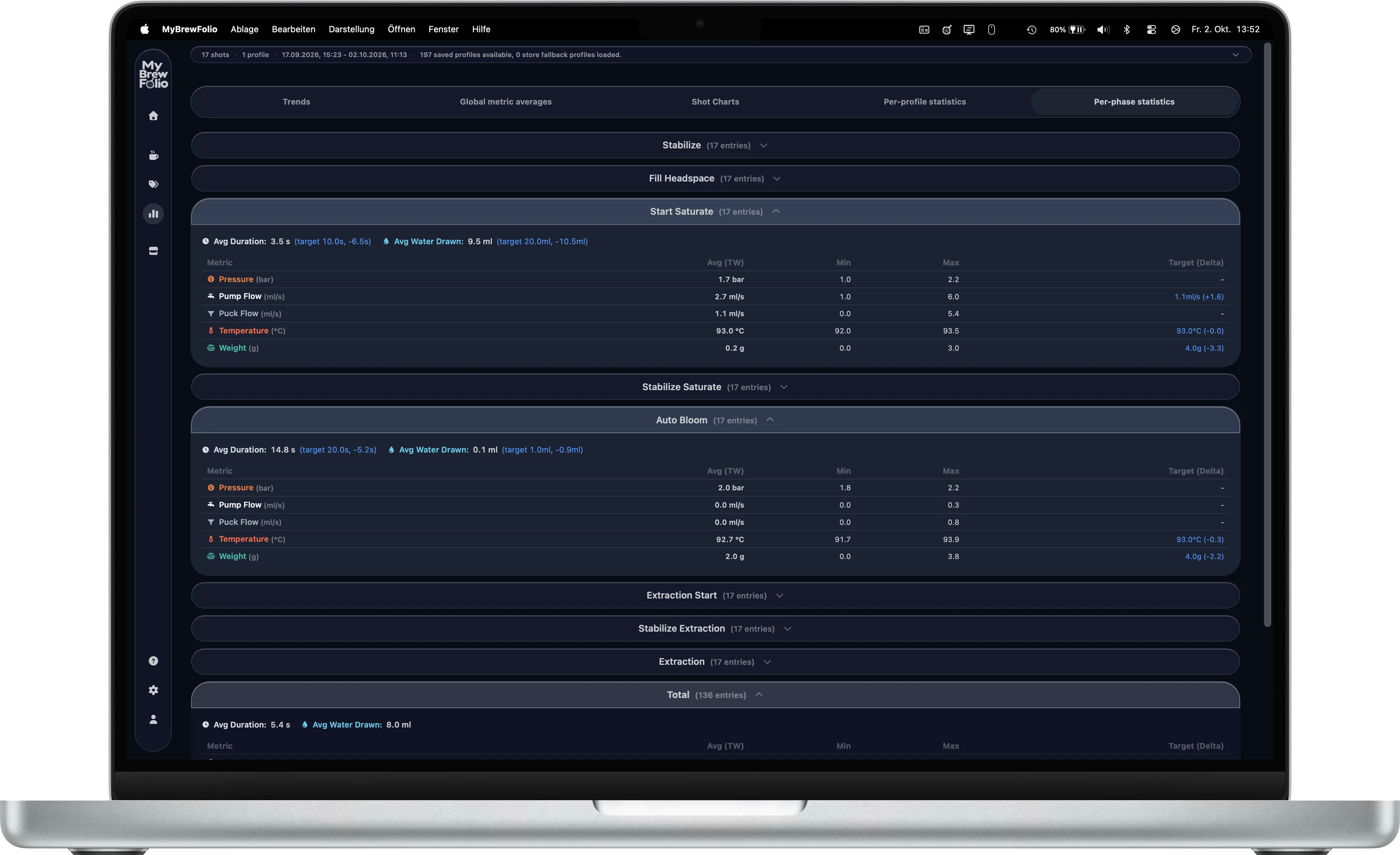
Inspect phase timing, measurements and target deltas.
Appearance & chart colors
Choose colors that work for you.
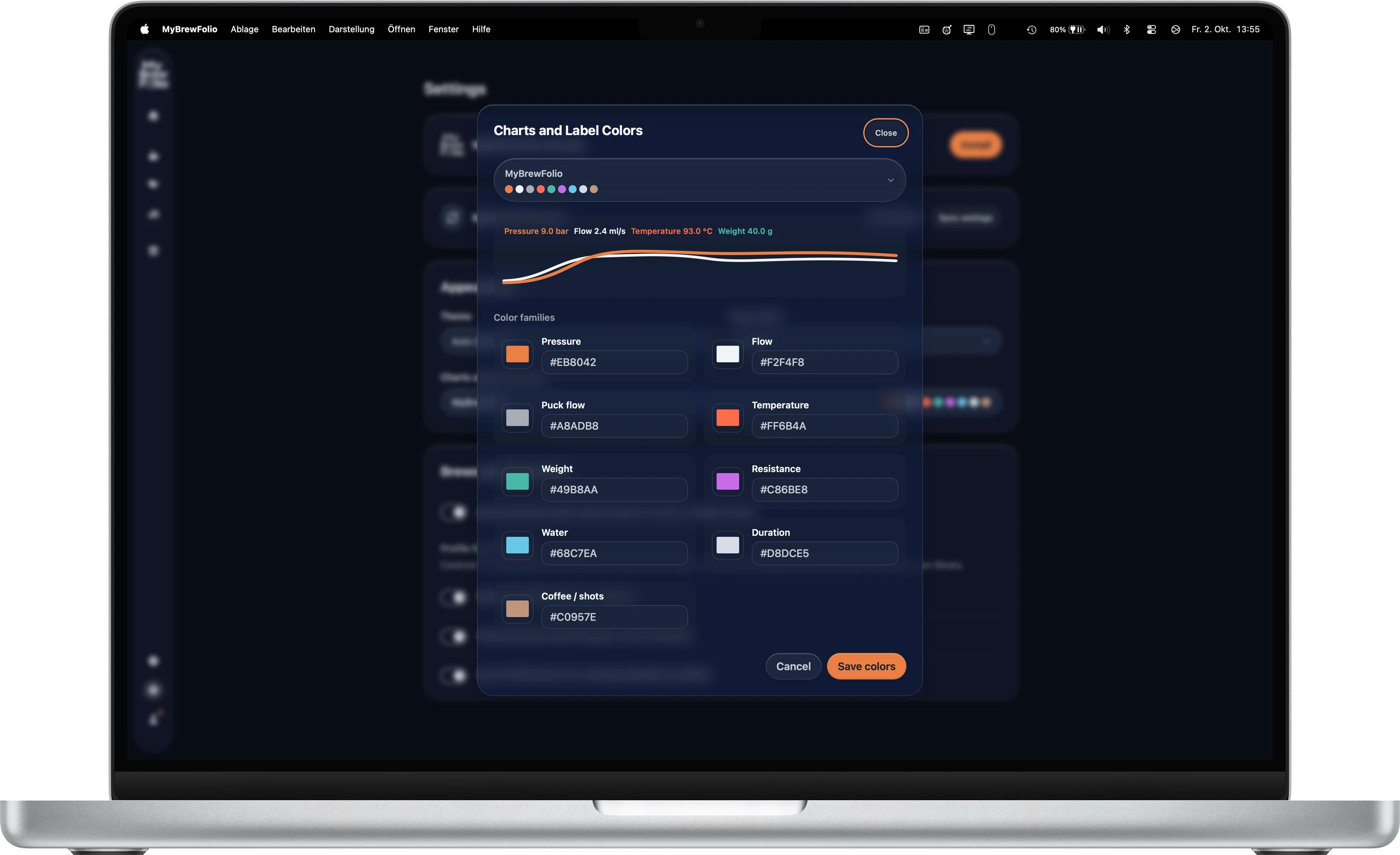
Switch between four themes or follow your system, then choose Strong, Medium or Off for the Glass effect. Chart and label colors can be adjusted by metric so pressure, flow, weight and temperature are easier to distinguish.
Start with the MyBrewFolio or GaggiMate palette, select one of the four colorblind presets, or set individual colors. The preview shows how your choices look before you use them in your charts.
About MyBrewFolio
Made with care by modsmthng.
You may know me from the Deep Dive Shot Analyzer for GaggiMate and the Automatic Pro profiles, or from the smthng display housings.